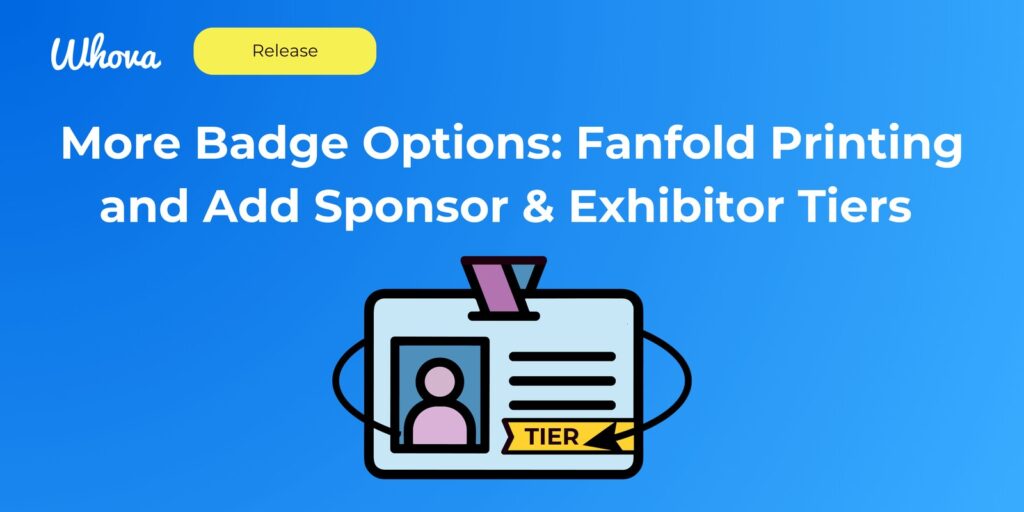
Whova has added two name badge options to its event platform: fanfold badge printing at check-in, and a badge field that shows an exhibitor’s or sponsor’s tier. Whova announced both on its blog on 5 November 2026. Fanfold printing puts your badge design on both sides of a folded badge, so names stay readable when a badge flips over on its lanyard. The tier field lets door and lounge staff see at a glance whether someone holds a Gold, Silver or other package. This report is based on Whova’s announcement and setup guide; we have not tested the features.
Fanfold badges printed at check-in
Whova already offered double-sided badges by printing a duplicated, double-size design. The new option prints two connected copies of the design on fanfold badge stock, with one copy upside down, so both faces read the right way up once the badge is folded.
According to Whova’s announcement, it works with compatible label printers from Brother, Zebra, DYMO and others on Whova’s supported list. Standard office printers cannot print fanfold badges, although they can still produce single-sided and double-sided ones. Whova handles the print alignment itself; you choose the stock’s black-mark pattern (one mark per fold line, or one on every other fold line) so the printer lines each badge up correctly.
You can use fanfold printing in three ways:
- Before the event. Generate badges for all attendees, chosen attendee categories, ticket types or a hand-picked list, then download a print-ready PDF. A test page option lets you check the layout first.
- On demand at the desk. Badges print automatically when staff check an attendee in, and staff can reprint a badge for any individual from the check-in dashboard.
- At a self check-in kiosk. Attendees check themselves in on Whova’s kiosk and collect a badge from a connected printer. This needs the kiosk add-on, set up for self check-in with on-site badge printing.
For on-site printing you set which badge template prints for each attendee category (if someone is in more than one, you pick the template), then choose the print format: single-sided, duplicate or fanfold. The settings can be changed at any time.
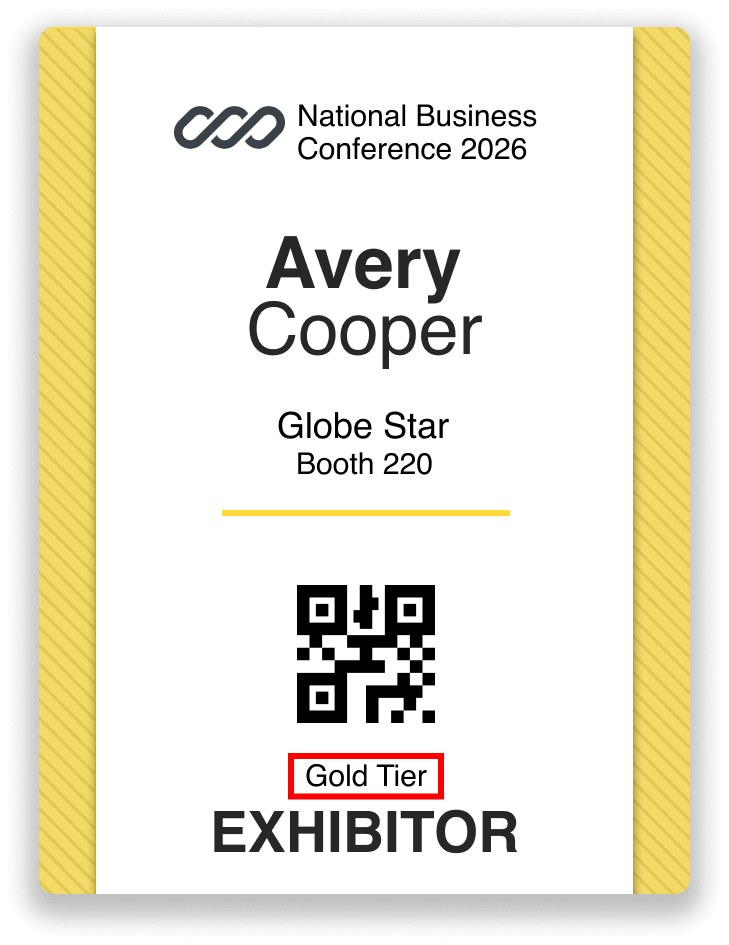
Sponsor and exhibitor tiers on the badge
The second change adds an “Exhibitor or Sponsor Tier” element to Whova’s badge designer. Ticking it in the attendee information menu prints the holder’s tier, such as Platinum, Gold, Silver or a custom tier name, wherever you place it on the badge. Whova’s example is staff checking entry to a VIP lounge or an exclusive networking session without looking someone up on a separate list.
Each badge template shows either exhibitor tiers or sponsor tiers, not both. If you need both, Whova’s guidance is to create a second template and assign one to exhibitors and the other to sponsors in your print settings.
What to check before you rely on it
- Your printer and stock. Fanfold printing depends on a label printer on Whova’s compatible list and fanfold stock with black marks that match the setting you choose. Print a test page with the stock you will actually use on the day.
- Tier data. The badge can only show a tier that is recorded against the exhibitor or sponsor in Whova, so the tier labels need to be set up and correct before badges print.
- Kiosk costs. Self-service printing runs through the Check-in Kiosk add-on, so confirm it is included in your package. Whova prices its organiser platform by quote, so ask for the kiosk to be itemised. Our Whova listing has the pricing details Whova does publish, including its ticket fees.
For other options for check-in and on-site badge printing, see the badging and lead retrieval directory, which includes fielddrive, Validar and Eventdex. Our guides on lead retrieval and badge scanning and offline check-in cover the questions to ask about the rest of the check-in setup.
In the directory: Compare event apps and networking platforms in the vendor directory.
Where this fits in Whova’s recent updates
This is the third Whova update we have covered since mid-October, after audience-specific consent forms and an organiser handover and the option to sell a sponsorship on its leaderboard contest. Like the leaderboard sponsorship, the tier field is aimed at organisers selling sponsor and exhibitor packages, here by making the benefits easier to deliver at the door.
Source: whova.com
Companies in this story
- WhovaYou can run registration, check-in, badges and the attendee app from one account, with paid tickets charged at 3.0% + $0.99 on top of the Stripe fee and platform pricing by quote.
- fielddriveYou get attendees through the door with self-service kiosks that print badges on the spot, plus lead capture, session scanning and analytics, while keeping your registration platform. fielddrive puts throughput at up to 200 attendees per kiosk per hour.
- ValidarYou get on-site check-in, on-demand badge printing, lead retrieval and session tracking that feed Salesforce or your marketing platform, delivered as full service, a hardware kit or software only.
- EventdexEvent management platform covering registration, on-site check-in and badge printing, exhibitor management, lead retrieval and AI matchmaking for conferences and trade shows.